

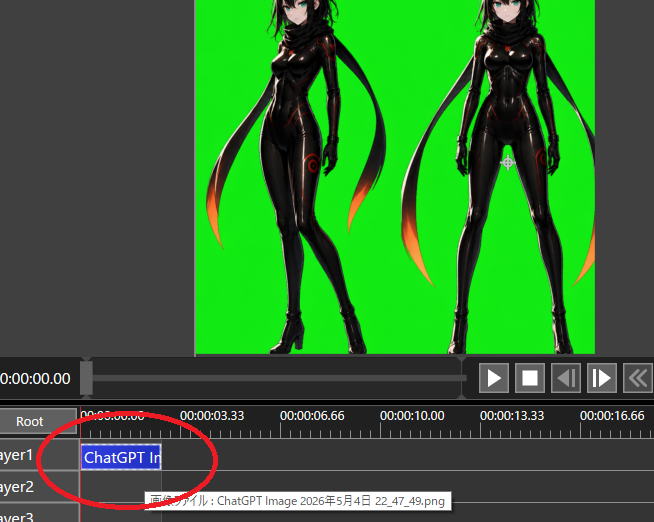
Goal: Create a screenshot-style image of a video editing/compositing workspace demonstrating chroma-key preparation for transparency.

Canvas: 654×522 pixel landscape screenshot, dark gray software interface, no browser chrome or desktop frame. The main preview occupies the upper half, timeline occupies the lower half.

Preview area: Center a bright pure green chroma-key background rectangle. On it, place exactly 2 full-body anime cyber-ninja women as imported image artwork: the left figure is a three-quarter pose with one leg crossed forward, the right figure is front-facing with legs apart. Both have [hair color] hair, pale skin, teal eyes, glossy black bodysuits with subtle red/orange glowing seams, black gloves, high-heeled boots, and long black scarf/ribbon shapes trailing behind them with orange-red glowing tips. Crop the top of both heads slightly at the top edge of the preview, matching a real editor viewport. Leave dark gray margins outside the green preview.

Interface layout: Below the preview, show a playback bar and transport controls. Include exactly 6 visible transport buttons on the right: play triangle, stop square, step/back button, step/forward button, double-chevron rewind, and a partially visible extra control at the far right. At the left of the time display, show white timecode text [current timecode]. Use small white UI text and gray panels.

Timeline: Show a ruler with time labels exactly 5 visible labels: 0:00:00.00, 0:00:03.33, 0:00:06.66, 0:00:10.00, and 0:00:13.33, plus a partially visible 0:00:16.66 at the far right. Show exactly 3 layer rows labeled Layer1, Layer2, and Layer3, with a Root row above them. Add a red vertical playhead at the start near 0:00:00.00. On Layer1, place one blue selected clip beginning at the start, labeled [clip label]. Draw a thick hand-drawn red oval/circle around the Layer1 clip and the beginning of the timeline, as if annotating where to click. Show a small tooltip near Layer2 with Japanese text beginning with [tooltip text].

Visual style: Realistic low-resolution software screenshot, crisp UI elements, slight aliasing, functional dark theme, no decorative framing. The anime artwork should look like polished AI-generated character art embedded in the editor rather than a flat icon.

Constraints: Keep the chroma-key green solid and vivid. Do not add extra characters, extra clips, or extra annotation circles. Do not include watermarks. Preserve the screenshot crop so the right-side controls and far-right time label are partially cut off.



0 Comments
👥 Co-learning Circle 0
Observe other members' variables & configurations, and click "Study & Retry" to instantly import settings and practice!