

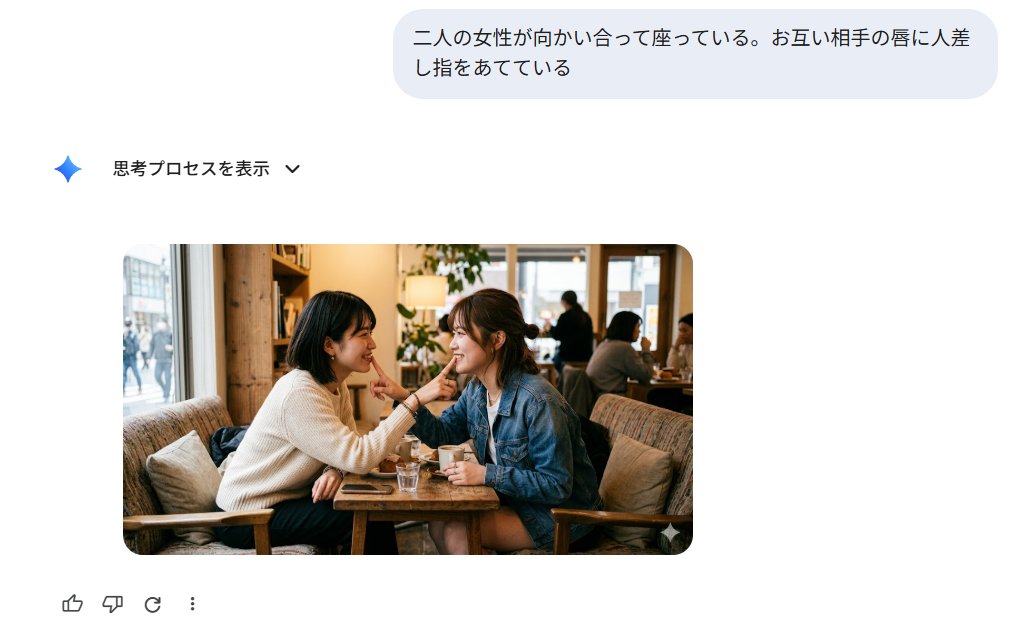
Goal: Create a clean screenshot-style web interface showing an AI image-generation result for the prompt [prompt text].

Canvas: 1030×630 landscape screenshot on a white background, minimal modern chat UI, generous empty space, no browser chrome or watermark.

Layout: Place a rounded light blue-gray user prompt bubble near the top right, about 605 px wide and 90 px tall, containing the Japanese prompt text in dark gray. Below and left, add a small blue gradient sparkle icon followed by the Japanese label 「思考プロセスを表示」 and a small downward chevron. Center-left beneath that, place one generated image card with rounded corners, about 570×310 px. At the bottom left under the image, show exactly 4 feedback/action icons in a row: thumbs up, thumbs down, circular regenerate arrow, and vertical three-dot menu.

Generated image card content: A realistic candid cafe photograph of exactly 2 adult women sitting face-to-face at a small wooden table by a large window. The woman on the left has [left woman outfit]; the woman on the right has [right woman outfit]. They are leaning toward each other and each places one index finger gently on the other woman's lips at the same time, creating a playful intimate mirrored gesture. Their faces are intentionally anonymized with exactly 2 soft rectangular pixel/blur masks, one over each face. On the table include exactly 4 visible tabletop items: one glass of water, one small white cup, one saucer or small plate, and one smartphone. The cafe background is warm and cozy with wooden furniture, cushions, bookshelves, plants, window daylight, and a few softly blurred patrons in the distance.

Visual style: The surrounding interface should be crisp, flat, and Google-like, while the image card should look photorealistic with warm natural lighting, shallow depth of field, and documentary realism. Use Japanese UI text exactly where specified. Keep the composition faithful to a generated image result embedded inside a chat interface.



0 Comments
👥 Co-learning Circle 0
Observe other members' variables & configurations, and click "Study & Retry" to instantly import settings and practice!